Help Center & User Guides
Everything you need to sync live CRM records, map custom spreadsheets, and master daily engagement check-in workflows.
Importing Contacts & Custom Mappings
Ingesting external data is effortless using the specialized Import Data interface accessible from the Settings view.
- File Formats: Supports standard CSV files alongside Excel spreadsheets (.xlsx, .xls).
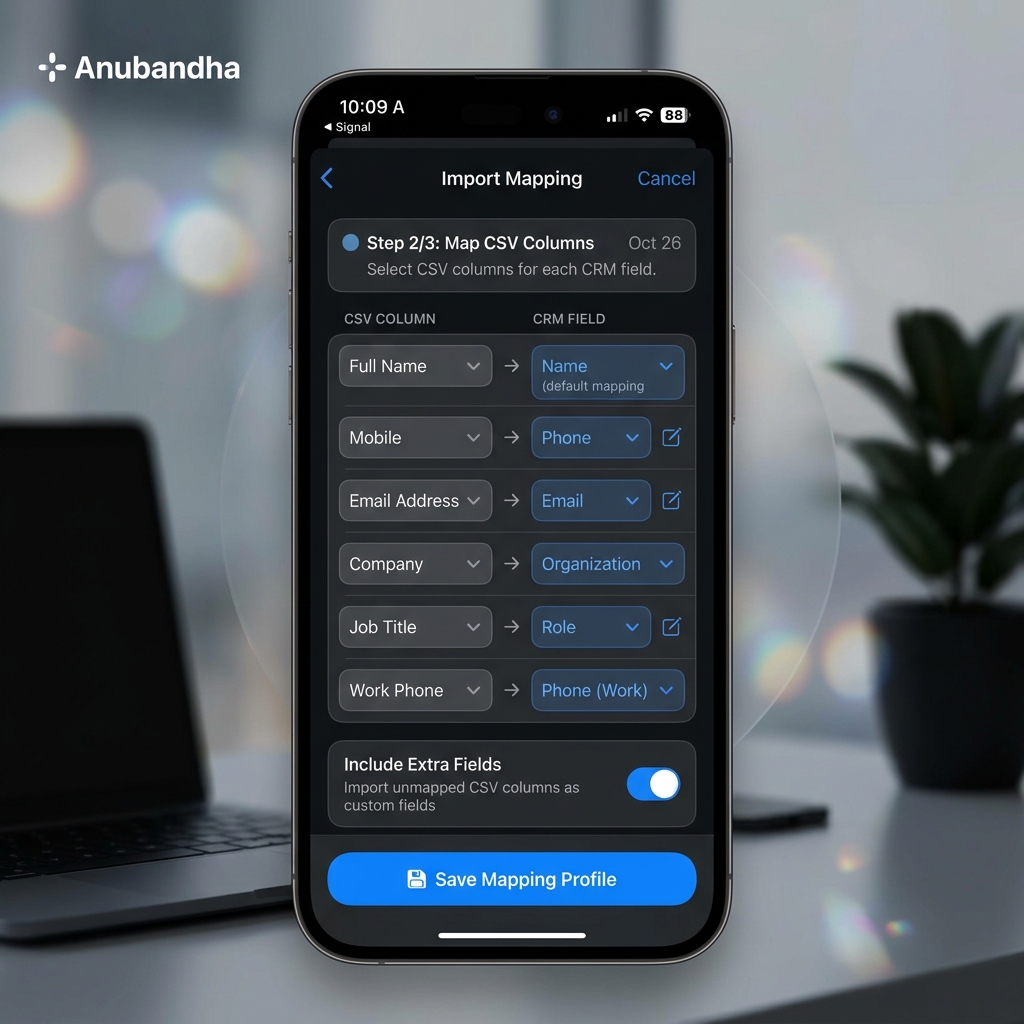
- Column Assignment: Map incoming headers directly to standard table columns such as
Name,Phone,Email, orProgram ID. - Extra Fields: Any remaining non-standard headers can be checked as Extra Fields, which are preserved cleanly as miscellaneous record properties.
- Registrations Import (Recommended): For faster setup, use the Registrations option. This allows you to import contacts, courses, and their associations from a single spreadsheet in one step. The system automatically creates or updates records based on the data provided.
- Constant Default Values: If your import file is missing specific data (e.g., all contacts are from "India" but the file has no Country column), you can set a Constant Value in the mapping screen. This value will be automatically applied to every record.
- Mapping Profiles: Save customized configurations as layouts to prevent repeating assignments in the future.
- Default Art of Living Presets: If you haven't configured any unique profiles, the system
automatically seeds professional Art of Living default mappings (e.g.,
TAOL:Registrations,TAOL:leads->course) directly into storage upon initial launch. - Sharing Layouts: Use the Mapping Profiles manager to multi-select configurations, export
them to portable
.jsonfiles via native share sheets, and import external bundles with comprehensive conflict handling.
Recommended Import Workflow for The Art of Living (India)
Your CRM platform provides two key data exports:
(Make sure you click Search and select appropriate filters to retrieve more than 10 records)
To fully populate your database with interlinked associations, choose one of these methods:
- One-Step Setup: Select the Registrations table and import your exported Registrations List. The system will automatically create/update Courses, Contacts, and Registrations in one pass.
- Legacy/Advanced Setup: If you prefer to manage data separately, you can import to the Courses or Contacts tables individually.
Direct Program Sync & AEF Exporter (Teacher Portal)
Integration Undergoing Updates (Coming Soon)
The Direct Program Sync portal is currently disabled for maintenance. During this period, please download your registration and course sheets manually from your CRM login and use the Custom Spreadsheet Importer below to map and ingest your rosters into Anubandha.
For Art of Living teachers, Anubandha is designed to support a direct synchronization pipeline under the Direct Teacher Portal (/generate/taol). Once active, this integration completely eliminates manually downloading and mapping spreadsheets, allowing you to fetch live CRM data, enrich records, and share them directly into the mobile app in seconds.
Pro-Tip: Access on Your Mobile Phone!
Access the Teacher Portal directly from your mobile phone's web browser. When you compile your data, Anubandha triggers a Native Mobile Share Intent. The native share sheet will slide up immediately, letting you share the package directly into the Anubandha App for instant, single-tap offline ingestion!
Step-by-Step Data Integration Guide
- Secure Authentication: Open /generate/taol and enter your standard Teacher Code and Password. Anubandha proxies the connection server-side to the Art of Living CRM, preventing credential exposure and CORS errors. A high-security 10-Minute Autodestruct Timer starts instantly to wipe all data when you're done.
- Fetch Live Programs: Select your target dates (defaults to the current calendar year) and click Fetch Programs. The browser sequentially pulls consecutive pages of programs from the CRM, showcasing real-time progress, and constructs a chronological program catalog.
- Inspect & Enrich Roster Data: Tap any row in the programs catalog to slide open a detailed interactive drawer. Click Retrieve Details & Participant List to fetch complete venue details, designated teacher profiles, instruction languages, registration links, and the full student/leads roster.
- Sequential Bulk Ingestion: To enrich multiple programs at once, check the checkboxes next to target rows and click Retrieve Details for Selected. The pipeline sequentially fetches and caches rosters, spacing hits automatically to respect CRM server rate-limits.
- Compile Combined AEF Package: With one or more enriched programs selected, tap Export AEF Package.
The exporter merges contacts, programs, and enrollment states into a single unified
.aefdata structure, formats starting dates to strict ISOYYYY-MM-DDformats, and groups leads separately. - Direct Native Sharing or Fallback:
- On Mobile: The browser invokes your phone's native share menu. Select Anubandha from the app list to import the dataset instantly.
- On Desktop: The browser triggers an automatic direct download for a secured local file named
anubandha_export_YYYY-MM-DD.aef.
- Import Preview Verification: Open the Anubandha application and navigate to Settings → Import Data. Select the AEF file. The app opens a comprehensive Import Preview Screen showing courses, participant lists, and registration changes side-by-side before you save them to your secure local database.
Custom Spreadsheet Data Mapping Importer
If you have custom contact lists, courses, registrations, or communication history in custom CSV or Excel files, you can use the interactive
Custom Importer (/generate/custom).
This tool runs entirely in your browser, parsing and mapping your spreadsheet structures locally and privately. Follow this step-by-step process flow to convert custom spreadsheets to standard .aef packages:
- Step 1: Upload Your Spreadsheet File
Drag and drop a.csv,.xlsx, or.xlsspreadsheet file into the uploader dropzone, or click to browse. A raw preview showing the first 5 records of your spreadsheet is loaded instantly under Section 1. If you need to map a different sheet, tap the Change File button. - Step 2: Select the Import Target
Under Section 2, select one of the four supported import targets matching your data structure:- Events: Map course schedules, dates, and locations. Required field:
courseid. - Contacts: Map contact details, numbers, and tags. Required fields:
nameandphone. - Registrations: Map student enrollments linking contacts to courses. Required fields:
name,phone, andcourseid. - Interactions: Map check-in details, logs, and touchpoints. Required fields:
name,phone, andinteraction.
- Events: Map course schedules, dates, and locations. Required field:
- Step 3: Load Mapping Presets (Optional)
Under Section 3, you can use the Load Profile selector in line with the card header to load default presets (e.g.TAOL:leads,Pathfinder:leads, orJourney:leads) matching standard Art of Living layouts. Selecting a profile automatically configures mapping triggers. - Step 4: Configure Column & Constant Mapping
Each schema header contains a search-enabled dropdown. You can map columns or constants as follows:- Multi-Column Concatenation: You can select multiple spreadsheet columns for a single field (e.g. mapping
First NameandLast NametoFull Name). The importer concatenates cell values with a single space. - Tag List Merging: Multiple columns mapped to tags (e.g.
contact.tags) are parsed, split by comma, and merged into a deduplicated flat array. - Constant Value Injection: Type a hardcoded text value inside the "Or enter constant..." box and tap Add to apply a static value (such as Country =
India) to all imported records. Constants appear as green badges. - Removing Mapping: Click the
×inside any badged pill to remove it.
- Multi-Column Concatenation: You can select multiple spreadsheet columns for a single field (e.g. mapping
- Import with Tags Feature
When importing spreadsheets, you can categorize and group contacts dynamically:- Dynamic Column Tags: Map any of your spreadsheet columns (such as Organization or City) directly as tag sources. The importer will automatically extract cell values from these columns and assign them as tags to the corresponding contacts during import.
- Fixed Tag Injection: You can add one or more static/fixed tags (e.g., a specific campaign name like
Spring2026or organization name likeArtOfLivingBangalore) that will be applied to every single contact or group included in the import file.
- Step 5: Preview, Export & Ingest
Verify that your mapped values align correctly in the dynamic preview table. Once all required schema fields are mapped, the Export AEF Package button is enabled. Tapping it will invoke the native mobile share sheet (if supported) or download an.aefpackage locally. Import this file under Settings → Import Data in the Anubandha application.
Direct File Sharing & Mobile Ingestion
To make data imports completely seamless on mobile devices, Anubandha registers as a system handler for supported data formats. This lets you import rosters and backups directly without using manual file browsers:
- Supported Formats: Spreadsheet formats (
.csv,.xlsx,.xls) alongside the native Anubandha Exchange Format (.aef) package files. - Platform Mechanics:
- Android: Registers system intent filters to listen for file sharing intents for Excel, CSV, or AEF MIME types.
- iOS: Displays Anubandha inside the native iOS Share Sheet when tapping on compatible documents.
- How to Use:
- Open the source application on your mobile device where the file resides (e.g. Gmail inbox, WhatsApp message, Google Drive folder, or local Files app).
- Locate your spreadsheet or
.aefbackup and tap the Share button. - Select Anubandha from the list of compatible apps.
- Anubandha opens automatically in the foreground and displays the Import Confirmation Screen. Tapping confirm will parse the file (opening the spreadsheet Column Mapping view for CSV/Excel, or launching the direct restore sequence for
.aefpackages).